
Put Your Smart Home Devices on Their Own Wi-Fi Network
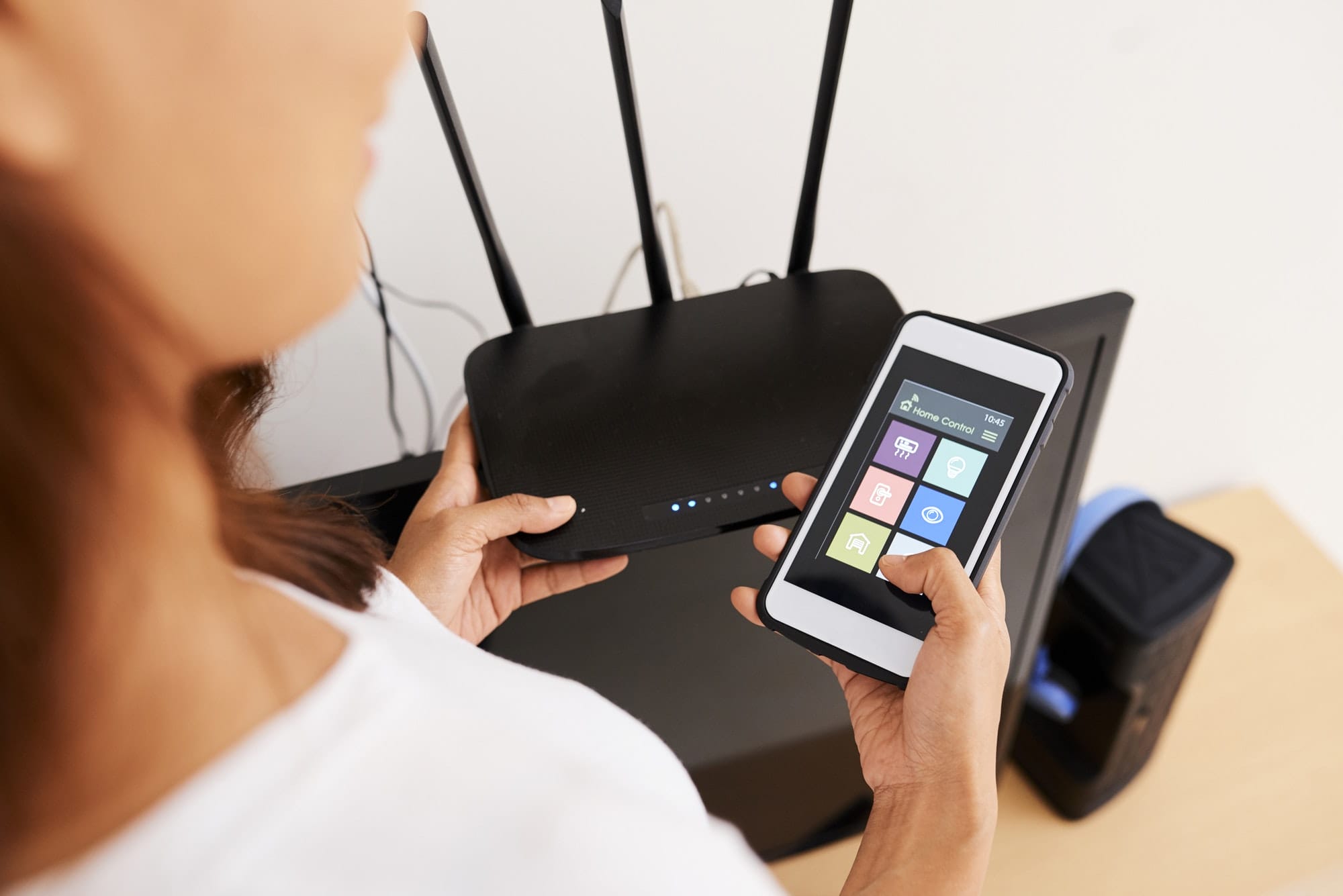
The weakest computers in most homes aren’t the laptops. They’re the smart plugs, cameras, doorbells, TVs and robot vacuums: cheap devices that get few updates and are sometimes abandoned by their makers after a couple of years.
That isn’t a theoretical worry. In 2016 the Mirai botnet took over hundreds of thousands of internet-connected cameras and video recorders, most of them still using factory passwords, and used them to knock major websites offline. Those devices sat on the same home networks as their owners’ computers.
You can’t make every gadget secure, but you can make sure a compromised one can’t reach anything that matters. That means giving smart devices a Wi-Fi network of their own.
What a separate network does, and doesn’t do
Devices on the separate network can reach the internet, which is all most of them need. They can’t start connections to the computers, phones and storage on your main network. If a camera is compromised, whoever controls it can’t browse your laptop’s shared folders or attack your network drive.
It doesn’t make the device itself any safer. You still want to change default passwords and keep firmware updated. Think of it as a fire door, not a fireproof building.
Three ways to do it
1. Use your router’s guest network
Almost every router and mesh system has a guest network, and it’s usually kept apart from the main one. Turn it on, give it a clear name like “Home-Devices”, and use it for your smart gadgets.
Two things to check first. Some guest networks also stop devices on them from talking to each other, which breaks setups where a hub controls bulbs or speakers group together. And some expire after a few hours or days. Look for those settings in your router’s app.
2. Use a dedicated smart-device network setting
Some mesh systems have a separate network intended for smart devices (TP-Link’s Deco app calls it an IoT network). It’s the guest-network approach with settings tuned for gadgets, such as keeping the 2.4 GHz band on.
3. Create a separate network with firewall rules
Routers built for enthusiasts, such as UniFi, Firewalla, Omada, OPNsense or pfSense, let you create a fully separate network (a VLAN) with its own Wi-Fi name and your own rules: smart devices may reach the internet, your main network may reach them, they may not reach your main network. It’s the strongest option and the most work. If you’re considering that kind of router, read our look at whether a UniFi Dream Router suits a smart home.
Setting it up, step by step
- List your smart devices. Your router’s app shows everything connected; this is a good moment to remove anything you no longer use.
- Create the network. Use WPA2 or WPA2/WPA3 mixed mode, since many smart devices don’t support WPA3 alone, and make sure 2.4 GHz is on, because many gadgets can’t use anything else.
- Move devices one at a time, starting with the least important. Many need to be set up again through their app, and some need a factory reset first.
- Keep hubs with the devices they control. If a Hue Bridge moves to the device network, the bulbs follow it automatically, because they talk to the bridge over Zigbee rather than Wi-Fi.
- Test the things you control from your phone. This is where problems show up (see below).
The one thing that commonly breaks
Phones find nearby devices using a discovery protocol called multicast DNS. It doesn’t cross from one network to another by default. So when your phone is on the main network and the TV is on the device network, casting, AirPlay and “find device” features may stop working.
You have three fixes:
- keep the specific devices you cast to (TVs, streaming sticks, speakers) on the main network and move everything else;
- on an enthusiast router, turn on multicast DNS forwarding between the two networks;
- or put your phone on the device network briefly when you need to set something up.
What goes where
| Device | Network | Why |
|---|---|---|
| Laptops, phones, tablets, network storage | Main | These hold what you’re protecting |
| Smart plugs, bulbs, thermostats, robot vacuums | Devices | Rarely updated; they only need the internet |
| Cameras and video doorbells | Devices | Popular targets, and they see inside your home |
| TVs, streaming sticks, speakers you cast to | Devices if casting still works; otherwise main | Casting relies on discovery |
| Smart home hubs | With the devices they control | Hubs need to reach their devices directly |
| Printers | Main, unless your router can forward discovery | Computers need to find them |
A note on Matter and Thread
Matter, the newer smart home standard, relies heavily on discovery between your phone, the hub and the devices, and Thread devices connect through a border router such as a HomePod mini, an Apple TV or a recent Google Nest hub. Splitting these across networks causes problems. If your home is built around Matter, keep the border routers and the phones that control them on the same network, and isolate the Wi-Fi gadgets that work through their own cloud apps.
Housekeeping that goes with it
- Change every default password, and use a different one for each device’s account.
- Turn on automatic updates wherever the app offers them.
- Retire devices whose maker no longer ships security updates.
- Consider turning off UPnP on your router. It lets devices open holes in your firewall on their own; switching it off can affect some game consoles and video-call apps, so test afterwards.